
Meta Description:
Resolve your connection timeout Apollo Group TV issues with this complete guide. Learn causes, fixes, and tips for smooth streaming in the United States.
Table of Contents
Table of Contents
- What is a Connection Timeout on Apollo Group TV?
- Common Causes of Connection Timeout Apollo Group TV
- How to Fix Connection Timeout Apollo Group TV
- Advanced Troubleshooting for Connection Timeout Issues
- Frequently Asked Questions (FAQs)
- Tips to Prevent Connection Timeout on Apollo Group TV
- When to Contact Support for Connection Timeout Apollo Group TV
- Conclusion
What is a Connection Timeout on Apollo Group TV?
A connection timeout on Apollo Group TV occurs when your device cannot establish a stable connection with the streaming server within a certain period. This usually results in an error message or interrupted streaming, making it impossible to watch your favorite shows or channels. It is important to understand that a connection timeout is different from simple buffering or slow internet; it often indicates deeper network or server issues.
How it affects your viewing experience:
- Streaming stops abruptly, often mid-program.
- Channels may fail to load entirely.
- Apps may crash or become unresponsive if the timeout persists.
Difference between connection timeout and buffering:
| Issue Type | Cause | Effect on Streaming |
|---|---|---|
| Connection Timeout | Server or network fails to respond | App shows error; content doesn’t load |
| Buffering | Slow internet speed | Video pauses intermittently; resumes once data loads |
Understanding this distinction helps in applying the correct troubleshooting steps. As one tech support expert notes: “Timeouts are rarely random; they are a symptom of network, app, or server issues.”
Common Causes of Connection Timeout Apollo Group TV
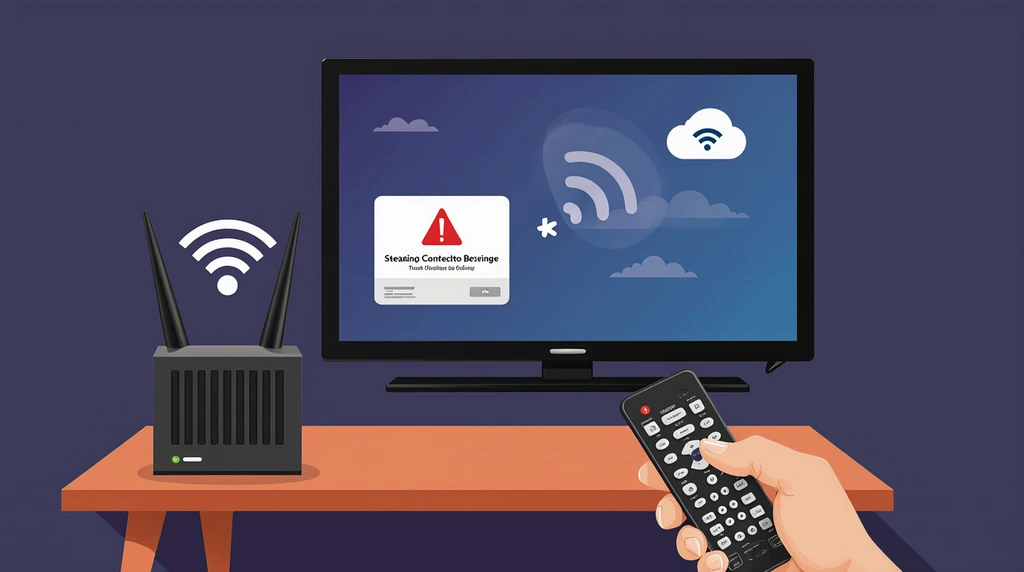
Several factors can trigger a connection timeout on Apollo Group TV, ranging from local network issues to server-side problems. Identifying the cause is the first step toward a permanent fix.
1. Internet Connectivity Problems
Unstable Wi-Fi or weak signals are the most common reasons for connection timeouts. Devices may intermittently lose connection to the router, preventing Apollo Group TV from maintaining a stable link.
2. Server-Side Issues at Apollo Group TV
Sometimes, the timeout is not on your end. Apollo Group TV servers may experience downtime, maintenance, or high traffic, which results in failed connections.
3. Outdated App or Firmware
Running an older version of the Apollo Group TV app or outdated device firmware can trigger timeouts. These updates often include bug fixes and optimizations to prevent connectivity issues.
4. Firewall or Network Restrictions
Certain firewall settings, VPNs, or network restrictions can block Apollo Group TV’s server communication. Corporate networks and public Wi-Fi often have strict rules that interfere with streaming apps.
5. High Network Traffic or Peak Usage Times
Heavy internet usage, especially during peak hours, can cause your connection to timeout. High traffic on your local network or on Apollo Group TV servers may result in slow response times.
How to Fix Connection Timeout Apollo Group TV
Fixing a connection timeout Apollo Group TV issue can be straightforward if you follow step-by-step solutions. Here are proven methods to resolve most cases:
1. Check and Reset Your Internet Connection
- Turn off your Wi-Fi router and modem.
- Wait 30 seconds before restarting them.
- Test the connection using other devices to confirm stability.
2. Restart Apollo Group TV and Connected Devices
Simply restarting your streaming device can clear temporary errors. Power off the TV or device, unplug it for a minute, and restart to refresh all processes.
3. Update Apollo Group TV App and Device Firmware
Ensure the app and device firmware are updated to the latest versions. Most timeouts occur due to compatibility issues that updates often fix.
4. Adjust Firewall and Router Settings
- Allow Apollo Group TV through firewall exceptions.
- Enable port forwarding for streaming apps if needed.
- Disable strict parental controls that may block server connections.
5. Use a Wired Connection Instead of Wi-Fi
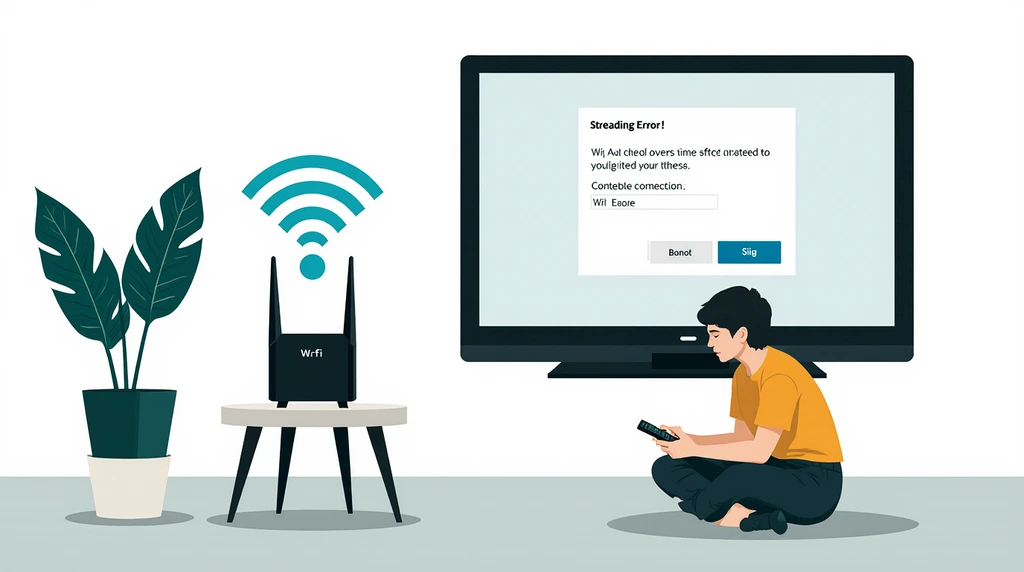
Wired Ethernet connections provide stable and faster speeds, reducing the likelihood of timeouts. Wi-Fi signals, especially in large homes, can drop intermittently, causing repeated errors.
Advanced Troubleshooting for Connection Timeout Issues
If basic fixes fail, advanced steps can resolve persistent timeouts.
1. Clear Cache and Data of Apollo Group TV App
Stored cache or corrupted data may block server communication. Clearing the cache can often restore normal function without reinstalling the app.
2. Check DNS and IP Settings
Incorrect DNS or IP configurations can prevent proper server connection. Switching to a public DNS (like Google DNS: 8.8.8.8) often resolves these issues.
3. Use a VPN if Server Access is Restricted
Sometimes, server access may be region-restricted or blocked. Using a reliable VPN can bypass such restrictions, though it may slightly reduce speed.
4. Contact Apollo Group TV Support for Persistent Errors
If none of the above works, the issue may be on the server side. Prepare logs, device details, and timestamps before contacting support for faster resolution.
Frequently Asked Questions (FAQs)
Q1: Why does Apollo Group TV keep showing a connection timeout?
It is usually due to network instability, outdated software, or server issues. Checking your connection and app version is the first step.
Q2: Is connection timeout Apollo Group TV an internet issue or app issue?
It can be either. Local internet problems, device settings, or app bugs can all trigger timeouts.
Q3: Can I prevent connection timeout in the future?
Yes. Regular updates, stable internet, and optimized network settings reduce the likelihood of timeouts.
Q4: How long does a connection timeout last on Apollo Group TV?
Timeouts are usually brief, but persistent errors indicate deeper problems with your network or the server.
Tips to Prevent Connection Timeout on Apollo Group TV
Preventing timeouts ensures uninterrupted streaming. Here are expert tips:
- Maintain a stable, high-speed internet connection.
- Keep the Apollo Group TV app and device firmware updated.
- Avoid peak network traffic hours if possible.
- Optimize network settings for streaming.
Pro Tip: Using a router with Quality of Service (QoS) settings prioritizes streaming apps, reducing timeout occurrences.
When to Contact Support for Connection Timeout Apollo Group TV
Sometimes, professional help is necessary.
Signs That It’s a Server-Side Problem
- The app fails across multiple devices.
- Error messages appear even with stable internet.
- Downtime coincides with Apollo Group TV maintenance alerts.
Preparing Error Logs and Device Info
Before contacting support:
- Record the time of occurrence
- Note the device type and firmware version
- Take screenshots of error messages
What Support Can Do
- Check server status and connectivity logs.
- Guide you through device or network-specific fixes.
- Provide updates for persistent server-side issues.
Conclusion
A connection timeout Apollo Group TV can be frustrating, but it is usually solvable with basic troubleshooting. Checking your internet, updating apps, optimizing network settings, and knowing when to contact support ensures smooth streaming. By following the steps outlined in this guide, you can minimize interruptions and enjoy your favorite Apollo Group TV channels without delays.
Quote: “Connection timeouts are a signal, not a permanent problem. Understanding the cause is half the solution.” – Streaming Technology Expert
Suggested Images for SEO:
- Diagram showing difference between buffering vs connection timeout
- Step-by-step troubleshooting flowchart
- Table comparing wired vs Wi-Fi stability
- Screenshot of Apollo Group TV timeout error
- Infographic of tips to prevent connection timeout
3 Responses